Table of Contents
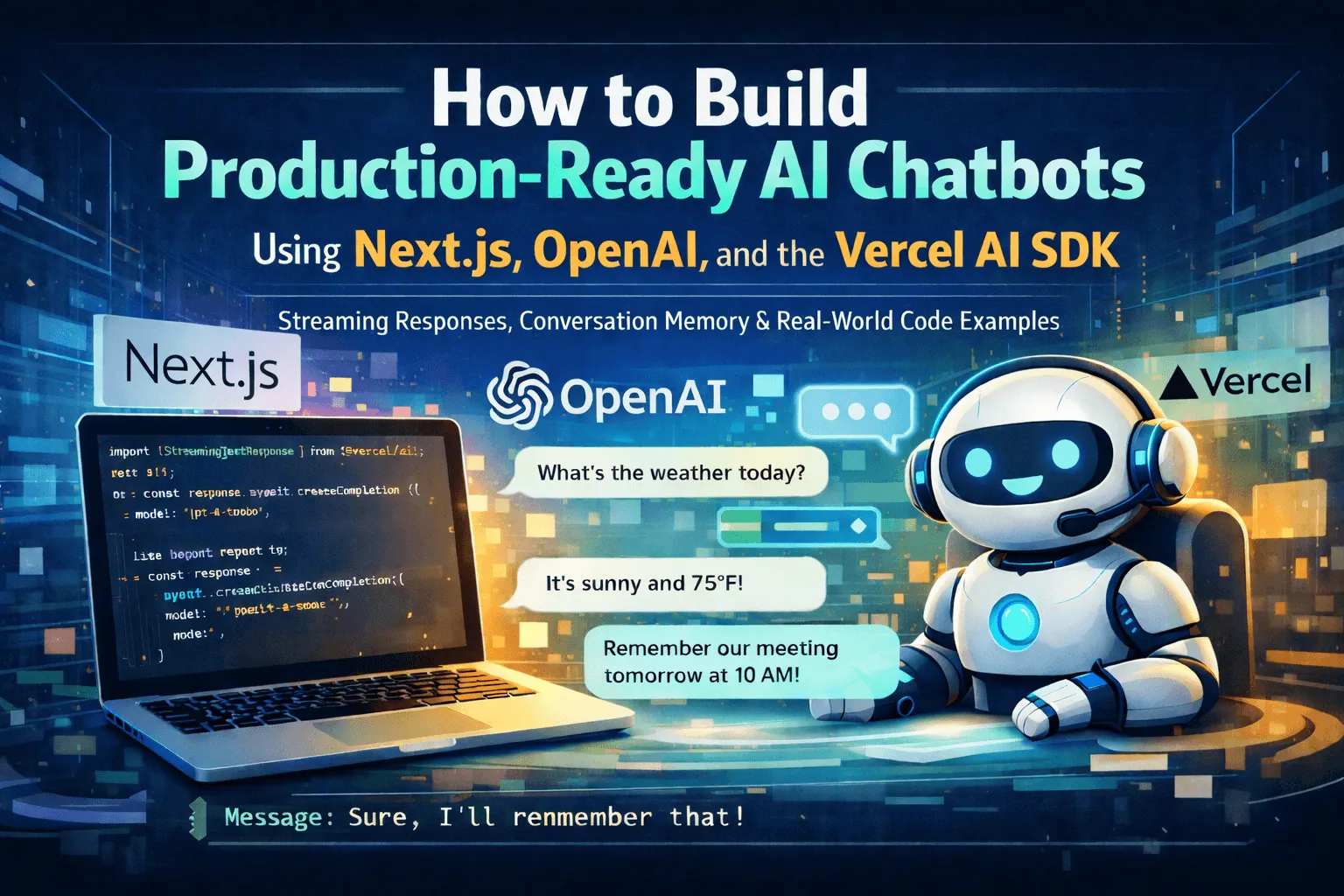
Let’s be honest — AI chatbots are everywhere now. From customer support widgets to coding assistants, they’ve become a fundamental part of how we interact with websites. But here’s the thing: building one that actually feels good to use? That’s a different story.
I spent the last few months experimenting with various approaches to building chatbots, and I want to share what I’ve learnt. We’re going to build a fully functional AI chatbot using Next.js 15, OpenAI’s GPT models, and the Vercel AI SDK. No fluff, just practical code you can actually use.
By the end of this guide, you’ll have a chatbot that:
- Streams responses in real-time (no awkward loading spinners)
- Maintains conversation context across messages
- Handles errors gracefully
- Looks decent without much CSS effort
Let’s dive in.
Why Next.js for AI Chatbots?
Before we start coding, let me explain why I think Next.js is the best choice for this kind of project.
First, the obvious stuff: Next.js gives you both the frontend and backend in one place. You can write your React components and your API routes in the same project. This matters a lot when you’re building something interactive like a chatbot because you need tight integration between your UI and your server.
Second, and this is the real selling point — Vercel AI SDK. This library is specifically designed for building AI-powered applications with Next.js. It handles streaming, manages state, and provides React hooks that make the whole experience surprisingly pleasant. I’ve tried building chatbots with raw fetch calls and WebSockets before, and trust me, using the AI SDK feels like cheating.
Third, Next.js 15 brings some significant improvements to Server Actions and the App Router that make our code cleaner and more performant. The combination of React Server Components and streaming just works really well for AI applications.
Setting Up the Project
Right, let’s get our hands dirty. Start by creating a new Next.js project:
npx create-next-app@latest ai-chatbot --typescript --tailwind --app
cd ai-chatbot
I’m using TypeScript because, honestly, dealing with AI responses without type safety is asking for trouble. The shape of API responses can be unpredictable, and TypeScript catches a lot of issues before they become bugs.
Now, let’s install the packages we need:
npm install ai openai @ai-sdk/openai zodHere’s what each package does:
- ai: The Vercel AI SDK core package
- openai: OpenAI’s official Node.js library
- @ai-sdk/openai: The OpenAI provider for Vercel AI SDK
- zod: Schema validation library (used for defining tool parameters)
You’ll also need an OpenAI API key. Head over to platform.openai.com, create an account if you haven’t already, and generate an API key. Create a .env.local file in your project root:
OPENAI_API_KEY=sk-your-api-key-hereQuick note about API costs: GPT-4 is expensive. Like, surprisingly expensive if you’re not careful. For development and testing, I’d recommend using gpt-3.5-turbo — it’s much cheaper and honestly good enough for most use cases. You can always switch to GPT-4 later when you’re ready to deploy.
Building the Chat API Route
Let’s start with the backend. Create a new file at app/api/chat/route.ts:
import { openai } from '@ai-sdk/openai';
import { streamText } from 'ai';

export const maxDuration = 30;

export async function POST(req: Request) {
  const { messages } = await req.json();

  const result = streamText({
    model: openai('gpt-4o'),
    system: `You are a helpful assistant. You provide clear, concise answers
             and you're not afraid to say "I don't know" when you're unsure
             about something. You have a friendly but professional tone.`,
    messages,
  });

  return result.toDataStreamResponse();
}
That’s it. Seriously. The Vercel AI SDK handles all the complicated streaming logic for us. Let me break down what’s happening:
- We import
openaifrom the AI SDK provider andstreamTextfrom the core package maxDuration = 30tells Vercel (or your hosting provider) that this route might take up to 30 seconds. AI responses can be slow, especially for longer prompts- We parse the incoming messages from the request body
streamTextcreates a streaming response from OpenAItoDataStreamResponse()converts that stream into a proper HTTP response
The system prompt is where you define your chatbot’s personality. I’ve seen people write incredibly detailed system prompts, but I prefer keeping it simple. You can always make it more specific based on your use case.
Understanding Streaming Responses
One of the most important aspects of building a good chatbot is streaming. Without it, users have to wait for the entire response to generate before seeing anything — which can take several seconds for longer answers.
With streaming, tokens appear as they’re generated, creating a much more natural experience. The Vercel AI SDK handles all the complexity of Server-Sent Events (SSE) and chunked transfer encoding behind the scenes. You just call streamText() and it works.
Creating the Chat Interface
Now for the fun part — the frontend. Create a new file at app/chat/page.tsx:
'use client';

import { useChat } from 'ai/react';
import { useRef, useEffect } from 'react';

export default function ChatPage() {
  const { messages, input, handleInputChange, handleSubmit, isLoading, error } = useChat();
  const messagesEndRef = useRef<HTMLDivElement>(null);

  const scrollToBottom = () => {
    messagesEndRef.current?.scrollIntoView({ behavior: 'smooth' });
  };

  useEffect(() => {
    scrollToBottom();
  }, [messages]);

  return (
    <div className="flex flex-col h-screen max-w-3xl mx-auto p-4">
      <header className="mb-4">
        <h1 className="text-2xl font-bold">AI Assistant</h1>
        <p className="text-gray-600">Ask me anything. I'll do my best to help.</p>
      </header>

      <div className="flex-1 overflow-y-auto mb-4 space-y-4">
        {messages.length === 0 && (
          <div className="text-center text-gray-500 mt-8">
            <p>No messages yet. Start a conversation!</p>
          </div>
        )}

        {messages.map((message) => (
          <div
            key={message.id}
            className={`flex ${message.role === 'user' ? 'justify-end' : 'justify-start'}`}
          >
            <div
              className={`max-w-[80%] rounded-lg px-4 py-2 ${
                message.role === 'user'
                  ? 'bg-blue-600 text-white'
                  : 'bg-gray-100 text-gray-900'
              }`}
            >
              <p className="whitespace-pre-wrap">{message.content}</p>
            </div>
          </div>
        ))}

        {isLoading && (
          <div className="flex justify-start">
            <div className="bg-gray-100 rounded-lg px-4 py-2">
              <div className="flex space-x-2">
                <div className="w-2 h-2 bg-gray-400 rounded-full animate-bounce" />
                <div className="w-2 h-2 bg-gray-400 rounded-full animate-bounce delay-100" />
                <div className="w-2 h-2 bg-gray-400 rounded-full animate-bounce delay-200" />
              </div>
            </div>
          </div>
        )}

        <div ref={messagesEndRef} />
      </div>

      {error && (
        <div className="mb-4 p-3 bg-red-100 text-red-700 rounded-lg">
          Something went wrong. Please try again.
        </div>
      )}

      <form onSubmit={handleSubmit} className="flex gap-2">
        <input
          type="text"
          value={input}
          onChange={handleInputChange}
          placeholder="Type your message..."
          className="flex-1 px-4 py-2 border border-gray-300 rounded-lg focus:outline-none focus:ring-2 focus:ring-blue-500"
          disabled={isLoading}
        />
        <button
          type="submit"
          disabled={isLoading || !input.trim()}
          className="px-6 py-2 bg-blue-600 text-white rounded-lg hover:bg-blue-700 disabled:opacity-50 disabled:cursor-not-allowed"
        >
          Send
        </button>
      </form>
    </div>
  );
}
The magic here is the useChat hook. This single hook handles:
- Managing the messages array
- Tracking the input state
- Submitting messages to your API
- Handling streaming responses
- Tracking loading and error states
Without the AI SDK, you’d be writing a lot of boilerplate to manage all of this. I’ve done it the hard way, and it’s not fun.
A few things I want to highlight about this implementation:
Auto-scrolling: Notice the useRef and useEffect combination that scrolls to the bottom whenever new messages arrive. This seems like a small detail, but it makes a huge difference in usability.
Loading indicator: Those bouncing dots you see when the AI is “thinking” provide visual feedback that something is happening. Users hate staring at a blank screen.
Error handling: The AI SDK provides an error state that we display when something goes wrong. In production, you might want to add retry logic or more detailed error messages.
Adding Conversation Memory
The basic setup above already maintains conversation context within a single session. But what if you want to persist conversations across page refreshes? Let’s add that.
First, create a hook to manage localStorage:
// hooks/use-persisted-chat.ts
'use client';

import { useChat } from 'ai/react';
import { useEffect } from 'react';
import type { Message } from 'ai';

const STORAGE_KEY = 'chat-messages';

export function usePersistedChat() {
  const chat = useChat({
    initialMessages: getStoredMessages(),
  });

  useEffect(() => {
    if (chat.messages.length > 0) {
      localStorage.setItem(STORAGE_KEY, JSON.stringify(chat.messages));
    }
  }, [chat.messages]);

  const clearChat = () => {
    localStorage.removeItem(STORAGE_KEY);
    chat.setMessages([]);
  };

  return {
    ...chat,
    clearChat,
  };
}

function getStoredMessages(): Message[] {
  if (typeof window === 'undefined') return [];

  try {
    const stored = localStorage.getItem(STORAGE_KEY);
    return stored ? JSON.parse(stored) : [];
  } catch {
    return [];
  }
}
Now update your chat page to use this hook instead:
'use client';

import { usePersistedChat } from '@/hooks/use-persisted-chat';
// ... rest of imports

export default function ChatPage() {
  const { messages, input, handleInputChange, handleSubmit, isLoading, error, clearChat } = usePersistedChat();
  // ... rest of component

  return (
    <div className="flex flex-col h-screen max-w-3xl mx-auto p-4">
      <header className="mb-4 flex justify-between items-center">
        <div>
          <h1 className="text-2xl font-bold">AI Assistant</h1>
          <p className="text-gray-600">Ask me anything.</p>
        </div>
        {messages.length > 0 && (
          <button
            onClick={clearChat}
            className="text-sm text-gray-500 hover:text-gray-700"
          >
            Clear conversation
          </button>
        )}
      </header>
      {/* ... rest of JSX */}
    </div>
  );
}
Now your conversations survive page refreshes. Users can pick up where they left off, which is especially useful for longer discussions.
Using Vercel AI Gateway (Alternative Approach)
If you’re deploying to Vercel, you might want to consider using their AI Gateway instead of calling OpenAI directly. The AI Gateway provides some nice benefits:
- Caching: Identical requests can be cached, reducing costs
- Rate limiting: Built-in protection against abuse
- Analytics: See how your AI features are being used
- Provider flexibility: Switch between OpenAI, Anthropic, and others easily
Here’s how to set it up. First, enable AI Gateway in your Vercel project settings. Then update your API route:
// app/api/chat/route.ts
import { createOpenAI } from '@ai-sdk/openai';
import { streamText } from 'ai';

// Create a custom OpenAI provider pointing to Vercel AI Gateway
const openai = createOpenAI({
  baseURL: process.env.VERCEL_AI_GATEWAY_URL,
});

export const maxDuration = 30;

export async function POST(req: Request) {
  const { messages } = await req.json();

  const result = streamText({
    model: openai('gpt-4o'),
    system: `You are a helpful assistant.`,
    messages,
  });

  return result.toDataStreamResponse();
}
The beauty of the AI SDK is that switching providers is trivial. Want to use Anthropic’s Claude instead of OpenAI? Just change the import and model:
import { anthropic } from '@ai-sdk/anthropic';

const result = streamText({
  model: anthropic('claude-3-5-sonnet-20241022'),
  messages,
});
This flexibility is invaluable. I’ve had projects where we started with GPT-3.5, upgraded to GPT-4, and then switched to Claude for certain use cases — all without major code changes.
Implementing Function Calling (Tools)
Here’s where things get really interesting. Modern LLMs can call functions you define, allowing them to interact with external systems. Let’s add a simple weather function:
// app/api/chat/route.ts
import { openai } from '@ai-sdk/openai';
import { streamText, tool } from 'ai';
import { z } from 'zod';

export const maxDuration = 30;

export async function POST(req: Request) {
  const { messages } = await req.json();

  const result = streamText({
    model: openai('gpt-4o'),
    system: `You are a helpful assistant with access to real-time weather data.`,
    messages,
    tools: {
      getWeather: tool({
        description: 'Get the current weather for a location',
        parameters: z.object({
          city: z.string().describe('The city to get weather for'),
          unit: z.enum(['celsius', 'fahrenheit']).default('celsius'),
        }),
        execute: async ({ city, unit }) => {
          // In a real app, you'd call a weather API here
          // For demo purposes, we'll return mock data
          const mockWeather = {
            city,
            temperature: unit === 'celsius' ? 22 : 72,
            unit,
            condition: 'Partly cloudy',
            humidity: 65,
          };
          return mockWeather;
        },
      }),
    },
    maxSteps: 3, // Allow the model to use tools up to 3 times
  });

  return result.toDataStreamResponse();
}
Now when you ask “What’s the weather in Dubai?”, the model will:
- Recognise it needs weather data
- Call your
getWeatherfunction - Use the response to formulate a natural language answer
This pattern is incredibly powerful. You can add tools for:
- Searching your database
- Calling external APIs
- Performing calculations
- Sending emails or notifications
- Anything you can write a function for
The maxSteps parameter is important — it controls how many times the model can use tools in a single response. Set it too low and complex queries might fail; set it too high and you risk runaway API costs.
Handling Markdown and Code in Responses
AI models often respond with Markdown formatting, especially when discussing code. Let’s render that properly:
npm install react-markdown remark-gfmUpdate your message component:
import ReactMarkdown from 'react-markdown';
import remarkGfm from 'remark-gfm';

// Inside your messages.map()
<div
  className={`max-w-[80%] rounded-lg px-4 py-2 ${
    message.role === 'user'
      ? 'bg-blue-600 text-white'
      : 'bg-gray-100 text-gray-900'
  }`}
>
  {message.role === 'user' ? (
    <p className="whitespace-pre-wrap">{message.content}</p>
  ) : (
    <ReactMarkdown
      remarkPlugins={[remarkGfm]}
      components={{
        pre({ children }) {
          return (
            <pre className="bg-gray-800 text-gray-100 p-3 rounded-lg overflow-x-auto my-2">
              {children}
            </pre>
          );
        },
        code({ className, children, ...props }) {
          const isInline = !className;
          return isInline ? (
            <code className="bg-gray-200 px-1 rounded" {...props}>
              {children}
            </code>
          ) : (
            <code {...props}>{children}</code>
          );
        },
      }}
    >
      {message.content}
    </ReactMarkdown>
  )}
</div>
This renders code blocks with syntax highlighting and handles tables, lists, and other Markdown elements properly. The difference is night and day — raw Markdown text is hard to read, but properly rendered responses look professional.
Adding Rate Limiting
Unless you want a surprise bill from OpenAI, you’ll want to add rate limiting. Here’s a simple approach using Vercel KV:
npm install @vercel/kv// app/api/chat/route.ts
import { openai } from '@ai-sdk/openai';
import { streamText } from 'ai';
import { kv } from '@vercel/kv';
import { headers } from 'next/headers';
const RATE_LIMIT = 20; // requests per hour
const RATE_LIMIT_WINDOW = 60 * 60; // 1 hour in seconds
export const maxDuration = 30;
export async function POST(req: Request) {
// Get client IP for rate limiting
const headersList = await headers();
const ip = headersList.get('x-forwarded-for') || 'anonymous';
const key = `rate-limit:${ip}`;
// Check rate limit
const requests = await kv.incr(key);
if (requests === 1) {
await kv.expire(key, RATE_LIMIT_WINDOW);
}
if (requests > RATE_LIMIT) {
return new Response('Rate limit exceeded. Please try again later.', {
status: 429,
});
}
const { messages } = await req.json();
const result = streamText({
model: openai('gpt-4o'),
system: `You are a helpful assistant.`,
messages,
});
return result.toDataStreamResponse();
}This limits each IP address to 20 requests per hour. In production, you might want to:
- Use authenticated users instead of IP addresses
- Implement tiered limits for different user types
- Add more sophisticated abuse detection
Error Handling and Retry Logic
AI APIs can be flaky. Network issues, rate limits, and temporary outages happen. Let’s add proper error handling:
// app/api/chat/route.ts
import { openai } from '@ai-sdk/openai';
import { streamText, APICallError } from 'ai';

export const maxDuration = 30;

export async function POST(req: Request) {
  try {
    const { messages } = await req.json();

    if (!messages || !Array.isArray(messages)) {
      return new Response('Invalid request body', { status: 400 });
    }

    const result = streamText({
      model: openai('gpt-4o'),
      system: `You are a helpful assistant.`,
      messages,
      abortSignal: req.signal, // Allow client to cancel request
    });

    return result.toDataStreamResponse();
  } catch (error) {
    console.error('Chat API error:', error);

    if (error instanceof APICallError) {
      if (error.statusCode === 429) {
        return new Response('Too many requests to AI provider', { status: 429 });
      }
      if (error.statusCode === 401) {
        return new Response('AI provider authentication failed', { status: 500 });
      }
    }

    return new Response('An unexpected error occurred', { status: 500 });
  }
}
On the frontend, add retry logic:
'use client';

import { useChat } from 'ai/react';
import { useState } from 'react';

export default function ChatPage() {
  const [retryCount, setRetryCount] = useState(0);

  const { messages, input, handleInputChange, handleSubmit, isLoading, error, reload } = useChat({
    onError: (error) => {
      console.error('Chat error:', error);
      // Auto-retry once on failure
      if (retryCount < 1) {
        setRetryCount((prev) => prev + 1);
        setTimeout(() => reload(), 1000);
      }
    },
    onFinish: () => {
      setRetryCount(0);
    },
  });

  // ... rest of component
}
The reload function from useChat retries the last message, which is perfect for transient errors.
Optimising Token Usage
OpenAI charges by token, and chatbots can get expensive quickly. Here are some strategies to keep costs down:
| Model | Input Cost (per 1K tokens) | Output Cost (per 1K tokens) |
|---|---|---|
| GPT-3.5 Turbo | $0.0005 | $0.0015 |
| GPT-4 | $0.03 | $0.06 |
| GPT-4o | $0.005 | $0.015 |
1. Summarise Long Conversations
import { openai } from '@ai-sdk/openai';
import { generateText } from 'ai';
import type { Message } from 'ai';

// Summarise conversation when it gets too long
async function summariseConversation(messages: Message[]): Promise<Message[]> {
  if (messages.length < 10) return messages;

  const { text } = await generateText({
    model: openai('gpt-3.5-turbo'), // Use cheaper model for summarisation
    prompt: `Summarise this conversation in 2-3 sentences, preserving key context:
    ${messages.slice(0, -4).map(m => `${m.role}: ${m.content}`).join('\n')}`,
  });

  return [
    { id: 'summary', role: 'system', content: `Previous conversation summary: ${text}` } as Message,
    ...messages.slice(-4), // Keep last 4 messages for immediate context
  ];
}
2. Use Cheaper Models for Simple Tasks
const result = streamText({
  // Use GPT-4 for complex reasoning, GPT-3.5 for simple queries
  model: openai(isComplexQuery(messages) ? 'gpt-4o' : 'gpt-3.5-turbo'),
  messages,
});

function isComplexQuery(messages: Message[]): boolean {
  const lastMessage = messages[messages.length - 1];
  const complexKeywords = ['analyse', 'compare', 'explain why', 'code review'];
  return complexKeywords.some(kw => lastMessage.content.toLowerCase().includes(kw));
}
3. Set Maximum Token Limits
const result = streamText({
  model: openai('gpt-4o'),
  messages,
  maxTokens: 1000, // Limit response length
});
Adding a System Prompt Editor
For flexibility, let’s allow users to customise the chatbot’s personality:
'use client';

import { useChat } from 'ai/react';
import { useState } from 'react';

const DEFAULT_SYSTEM_PROMPT = `You are a helpful assistant. Be concise but thorough.`;

export default function ChatPage() {
  const [systemPrompt, setSystemPrompt] = useState(DEFAULT_SYSTEM_PROMPT);
  const [showSettings, setShowSettings] = useState(false);

  const { messages, input, handleInputChange, handleSubmit, isLoading, setMessages } = useChat({
    body: {
      systemPrompt, // Pass to API route
    },
  });

  const handleSystemPromptChange = (newPrompt: string) => {
    setSystemPrompt(newPrompt);
    setMessages([]); // Clear conversation when prompt changes
  };

  return (
    <div className="flex flex-col h-screen max-w-3xl mx-auto p-4">
      <header className="mb-4 flex justify-between items-center">
        <h1 className="text-2xl font-bold">AI Assistant</h1>
        <button
          onClick={() => setShowSettings(!showSettings)}
          className="text-gray-600 hover:text-gray-800"
        >
Update your API route to accept the custom prompt:
export async function POST(req: Request) {
  const { messages, systemPrompt } = await req.json();

  const result = streamText({
    model: openai('gpt-4o'),
    system: systemPrompt || 'You are a helpful assistant.',
    messages,
  });

  return result.toDataStreamResponse();
}
Testing Your Chatbot
Before deploying, you should test your chatbot thoroughly. Here are some test cases to consider:
// __tests__/chat.test.ts
import { POST } from '@/app/api/chat/route';

describe('Chat API', () => {
  it('should return a streaming response', async () => {
    const request = new Request('http://localhost:3000/api/chat', {
      method: 'POST',
      body: JSON.stringify({
        messages: [{ role: 'user', content: 'Hello' }],
      }),
    });

    const response = await POST(request);
    expect(response.status).toBe(200);
    expect(response.headers.get('content-type')).toContain('text/event-stream');
  });

  it('should handle empty messages', async () => {
    const request = new Request('http://localhost:3000/api/chat', {
      method: 'POST',
      body: JSON.stringify({ messages: [] }),
    });

    const response = await POST(request);
    // Should still work, just might return a generic response
    expect(response.status).toBe(200);
  });

  it('should reject invalid input', async () => {
    const request = new Request('http://localhost:3000/api/chat', {
      method: 'POST',
      body: JSON.stringify({ notMessages: 'invalid' }),
    });

    const response = await POST(request);
    expect(response.status).toBe(400);
  });
});
Also test the UI manually with various scenarios:
- Very long messages
- Messages with code blocks
- Rapid-fire messages
- Network interruptions
- Special characters and emojis
Deployment Considerations
When deploying to production, keep these things in mind:
Environment Variables: Make sure your OPENAI_API_KEY is properly set in your deployment environment. Never commit API keys to your repository.
Edge Runtime: Consider using the Edge runtime for lower latency:
export const runtime = 'edge';Monitoring: Set up logging and monitoring to track:
- Response times
- Error rates
- Token usage
- User engagement
Content Moderation: If your chatbot is public-facing, consider adding moderation:
import OpenAI from 'openai';

const openaiClient = new OpenAI();

async function moderateContent(content: string): Promise<boolean> {
  const moderation = await openaiClient.moderations.create({ input: content });
  return !moderation.results[0].flagged;
}
Common Gotchas and How to Avoid Them
After building several chatbots, here are the mistakes I see people make:
1. Not handling streaming properly: If you’re not using the AI SDK, streaming can be tricky. Make sure your HTTP response headers are correct and you’re flushing the stream properly.
2. Ignoring context limits: GPT-4 has a context window of 128k tokens, but that doesn’t mean you should use all of it. Longer contexts mean slower responses and higher costs. Summarise when possible.
3. Poor error messages: “Something went wrong” is not helpful. Give users specific feedback and actionable next steps.
4. No loading states: AI responses can take 10+ seconds. Always show feedback that something is happening.
5. Forgetting about mobile: Test your chat interface on phones. Scrolling, input focus, and keyboard handling all need attention.
Wrapping Up
Building AI chatbots with Next.js has never been easier. The combination of the App Router, React Server Components, and the Vercel AI SDK creates a development experience that’s both powerful and approachable.
We covered a lot of ground:
- Setting up a basic chatbot with streaming responses
- Persisting conversations across sessions
- Using Vercel AI Gateway for better control
- Adding function calling for external integrations
- Rendering Markdown and code properly
- Rate limiting and error handling
- Optimising for cost and performance
The code in this guide should give you a solid foundation to build on. From here, you might want to add:
- User authentication
- Multiple conversation threads
- Voice input/output
- Image understanding (with GPT-4 Vision)
- Integration with your existing systems
The AI space is moving incredibly fast. What seemed impossible a year ago is now a weekend project. I’m genuinely excited to see what you build with these tools.
If you run into issues or have questions, feel free to reach out. And if you build something cool, I’d love to see it.
Happy coding! 🚀
FAQs
How much does it cost to run an AI chatbot?
Costs vary significantly based on your model choice and usage. GPT-3.5-turbo costs around $0.002 per 1,000 tokens, whilst GPT-4 can cost $0.03-$0.06 per 1,000 tokens. For a small personal project, expect $10-50/month. High-traffic applications can easily run into hundreds or thousands of dollars.
Can I use this approach with other AI providers?
Absolutely. The Vercel AI SDK supports multiple providers including Anthropic (Claude), Google (Gemini), Mistral, and others. Switching providers often requires just changing the import and model name.
How do I make my chatbot remember previous conversations?
The basic approach stores messages in the client’s state. For persistent memory across sessions, save messages to localStorage (as shown above) or a database like Supabase or Vercel KV. For truly long-term memory, consider implementing conversation summarisation.
Is it safe to expose my chatbot to the public?
With proper precautions, yes. Implement rate limiting, content moderation, and input validation. Never trust user input — sanitise everything before sending to the AI. Consider adding authentication for sensitive use cases.
Why are my responses slow?
AI responses inherently take time, especially with larger models. To improve perceived performance: use streaming (which shows partial responses as they arrive), choose faster models like GPT-3.5-turbo for simple queries, and consider edge deployment for lower latency.